
AI Video Generator: Livensa
FERASETArt & Design
4.12.14K Reviews
- Version
- 6.0.1
- Installs
- 1.00M
- Age Rating
- Everyone
Screenshots
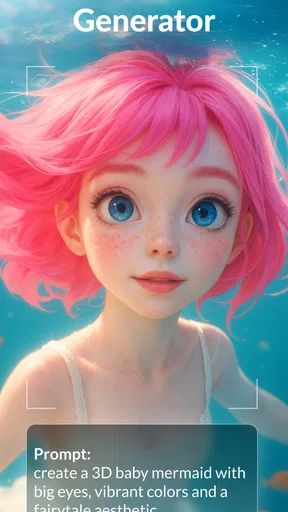
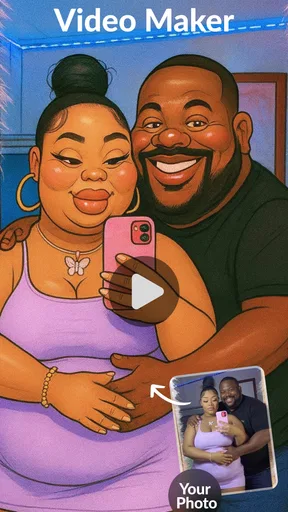
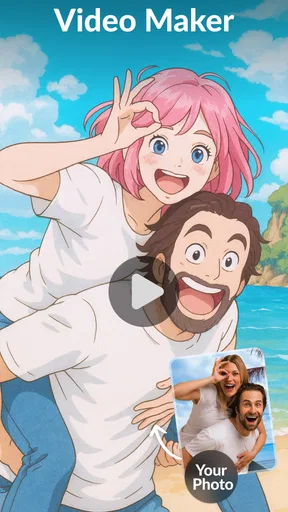
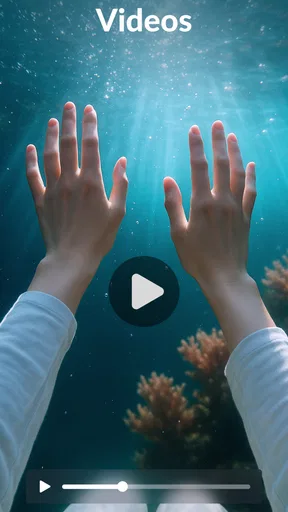
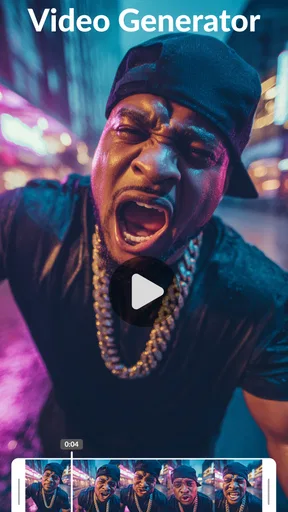
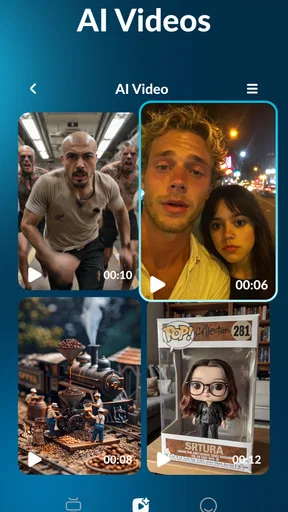
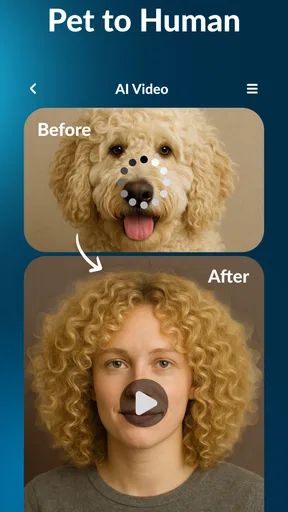
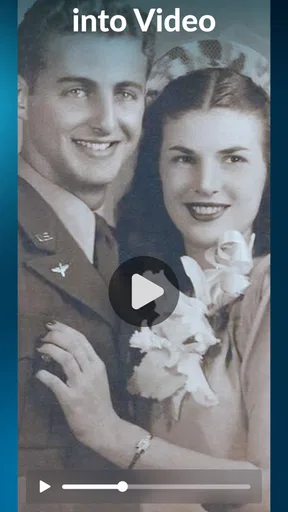
Our Review of AI Video Generator: Livensa
 Analysis by Appyee
I tend to judge an AI video maker by how quickly it turns a rough idea into something I’d actually share, and whether I can still steer the result when the first attempt misses. AI Video Generator: Livensa is aimed at that quick, approachable kind of creation: it brings text-to-video and image-to-video generation together with an anime and cartoon-making angle. That makes it most appealing when you want a visual starting point without learning a full editing suite, rather than when you need exact, frame-by-frame control.
Livensa is a free art-and-design app from FERASET, with optional in-app purchases ranging from $0.99 to $44.99 per item. It is rated for Everyone, and its current version is 5.9.5. Its average rating is 4.1 from around 171,000 ratings, with over a million installs. Those figures suggest that plenty of people are willing to try it, though they do not tell you whether its particular creative style will suit your needs. I’d treat it as a low-friction place to experiment, while checking the purchase options carefully if you expect to use it often.
Getting Started with Livensa
The first thing I noticed about AI Video Generator: Livensa is its super user-friendly interface. As soon as you open the app, you're welcomed by a sleek, intuitive design that makes navigation a breeze. No need to worry about being overwhelmed by options; everything is laid out nicely, and it guides you through the process like a trusty sidekick.
That accessible approach matters most when you arrive with only a loose idea. Instead of beginning with a blank timeline and having to make every editing decision yourself, you can use a text prompt or an image as the creative starting point. For a casual user, that can turn “I wonder what this could look like?” into a short experiment rather than an afternoon spent learning software. I’d still approach the first result as a draft: AI generation is useful for getting a direction on screen, not a promise that the output will match a precise mental picture.
Creating a video is as simple as pie. You start by selecting the type of video you want to create – be it for social media, a presentation, or just for fun. Livensa has a bunch of templates ready to make your life easier. Just pick one that tickles your fancy, and you’re off to the races!
Choosing a Starting Point That Helps
The practical choice is whether to begin with words or with a picture. Text-to-video is better when you want to explore a scene or mood without already having an image; image-to-video makes more sense when you have a particular subject, drawing, or photo you want to animate. I would not use either route as a substitute for a carefully planned commercial shoot, but both can help a creator test visual ideas before committing time to a more controlled workflow.
A useful habit is to keep the first prompt focused on one main subject and one clear action. If you ask for several characters, locations, and changes at once, it becomes harder to tell which part of the instruction shaped the result. Make a simple first attempt, then change one detail at a time. That gives you a better sense of how the generator responds and helps avoid spending effort on a prompt that is too crowded to guide the image well.
Fancy Features Galore
Once you’ve selected your template, it’s time to let the magic happen. Livensa uses AI technology to automate the video creation process, which is nothing short of impressive. You can add text, images, and even voiceovers with just a few taps. The AI does a pretty solid job at suggesting the best spots for these elements, so your video looks polished and professional.
For a more deliberate result, I’d separate the generated visual from the message you want viewers to take away. First see whether the imagery works on its own; then add only the words or voiceover needed to explain the point. This is especially useful for a small business owner making a quick announcement or a hobbyist sharing an idea: piling text, narration, and effects onto a busy generated scene can make the finished clip harder to follow, even when each individual element seems appealing.
Now, let’s talk about the nifty editing tools. You’ve got your basic trims and cuts, of course, but Livensa takes it a step further with effects and transitions that can make your video pop. Want to add some background music? No sweat. Just browse through their library of tunes, and you’re good to go.
Where It Fits in a Real Workflow
Imagine you have a few minutes between errands and want to make a playful birthday greeting from a picture you already have. Livensa’s image-led approach is a more natural first stop than opening a desktop editor, setting up a timeline, and building the animation manually. You can try a visual treatment, decide whether it feels right, and then add a short message. The point is not to make a perfect film in that spare moment; it is to turn an ordinary image into a shareable idea with less setup.
The same quick workflow can help someone preparing a social post, a mood-board clip, or a rough visual pitch. For a presentation, I would use a generated clip as an accent or concept illustration rather than relying on it to carry important information. A generated scene can draw attention, but headings, diagrams, and clean slides remain better when accuracy and legibility matter more than atmosphere.
One less obvious trade-off is that a template can save time while also steering the tone. If the result feels generic, changing the starting image or simplifying the message may do more than adding another transition. I’d spend the first revision on the core visual, then use effects sparingly; polishing a mismatched starting point tends to produce a more decorated mismatch.
Sharing Your Masterpiece
After all the hard work (or lack thereof, thanks to the app), sharing your video is a breeze. Livensa lets you export your creation in various formats, perfect for whatever platform you’re targeting. Whether it’s Instagram, YouTube, or just sending to friends, Livensa has you covered.
One thing I found particularly handy is the direct sharing feature. You can post directly to your favorite social media channels without leaving the app. It’s a small touch, but it saves a ton of time and hassle, especially if you’re juggling multiple accounts.
Before sharing, I’d watch the whole clip once with the sound on and once with it off. That quick check catches two different problems: audio that distracts from the visual, and text or imagery that does not make sense when someone watches silently. If the video is meant to communicate a practical detail, I’d also keep the key message in visible text rather than assuming every viewer will hear a voiceover.
How It Compares with Other Creative Apps
Compared with a conventional mobile video editor, Livensa’s appeal is the generative starting point: it is for people who want AI to help create imagery, not just arrange footage they have already shot. A traditional editor is usually the better choice when you need precise timing, consistent cuts across many clips, or close control over a finished sequence. Livensa is more attractive when the goal is a quick visual experiment or a stylized clip and you are happy to review what the AI produces.
It also serves a different purpose from a dedicated illustration app. If you want to refine line work, build a polished graphic, or preserve exact details in an image, an art editor gives you more direct control. Livensa makes more sense when motion and a video outcome are the point. I would choose between them based on the deliverable, not on which app sounds more advanced: a still design benefits from drawing tools, while an animated concept benefits from a video generator.
For someone who already edits regularly, the strongest role may be as an idea generator rather than a complete production pipeline. You can use it to explore a look, then move to an editor that offers the exact timeline and finishing controls your project needs. If you only want to make occasional playful clips, that extra step may be unnecessary; if a client or audience expects repeatable, precise results, it is a sensible division of labor.
Room for Improvement
While Livensa is pretty darn amazing, it’s not without its quirks. There were a couple of times when the app lagged a bit, especially when dealing with longer videos. It’s not a deal-breaker, but something to keep in mind if you’re planning on creating lengthy content.
That makes me cautious about treating it as my main tool for a long-form project. I’d keep a lengthy piece in an editor built around detailed sequencing, and use Livensa for shorter experiments or individual visual moments. If a generation or editing session starts to feel slow, working in smaller pieces is a reasonable way to keep the task manageable instead of trying to build one ambitious clip all at once.
I also noticed that while the AI suggestions are generally spot-on, they’re not always perfect. Sometimes it takes a little tweaking to get everything just right. But hey, that’s the beauty of creativity, right?
The important distinction is between a suggestion that needs a minor adjustment and a result that misses the idea entirely. Tweaking can improve placement or presentation, but it cannot guarantee that generated imagery will follow every specific instruction. When exact appearance matters, I would start from an image I control or switch to a more manual tool rather than repeatedly trying to force the generator toward a very particular outcome.
Who Should Give It a Try
I’d recommend Livensa to curious beginners, casual creators, and people who enjoy turning a prompt or image into a stylized moving clip without first learning a complex editing workflow. It can also suit someone who needs a quick visual draft for a social post or a personal greeting and is comfortable judging the result before sharing it. The app’s Everyone age rating makes its intended audience broad, but that does not mean every output is appropriate for every setting; I’d still review a clip before sending or publishing it.
I’d steer away if your work depends on exact brand colors, faithful product details, precise lip movement, or a long sequence that must remain consistent from shot to shot. Those needs call for predictable controls and careful review, not just a fast generative pass. It is also a poor fit if you dislike revising AI output or expect the first prompt to deliver a finished, publication-ready video every time.
Costs, Compatibility, and What to Check
The app is free to install, but in-app purchases range from $0.99 to $44.99 per item. I’d try the basic experience before buying anything and think about how often I expect to create videos; an occasional birthday clip and a regular content schedule are very different use cases. Before confirming a purchase, check what the specific item provides and whether it suits the way you plan to use the app. That is more useful than assuming every feature or workflow will be included at no cost.
Livensa was released on June 23, 2023, and version 5.9.5 is the current version. That gives existing users a concrete point of reference for the app they are using today, but a version number alone does not tell me which capabilities have changed between releases. I would judge any future update by practical results: whether creation feels more reliable, whether editing gives me better control, and whether sharing still fits my routine. Its minimum operating-system requirement is 7.1, which is worth checking against your device before installing.
If you are deciding whether to keep using it, ask yourself what you need from your next video. If the answer is “a quick, imaginative starting point,” Livensa has a clear purpose. If the answer is “repeatable output with exact control,” compare it with a conventional editor before building a workflow around it. That simple distinction will save more time than trying to make one tool suit every kind of project.
Final Thoughts
All in all, AI Video Generator: Livensa is a fantastic tool for anyone looking to dip their toes into video creation. Whether you’re a complete newbie or a seasoned pro looking for a quick solution, this app has something for everyone. The combination of ease-of-use and powerful features makes it a standout in the app world.
So, if you’re ready to unleash your inner Spielberg without the fuss, give Livensa a shot. Trust me, once you start creating, you’ll be hooked!
Verdict
Strengths of AI Video Generator: Livensa
- User-friendly interface for beginners.
- Wide range of templates available.
- High-quality video output.
- Quick rendering times.
- Supports multiple languages.
Limitations of AI Video Generator: Livensa
- Requires a stable internet connection.
- Limited free version features.
- Occasional app crashes reported.
- In-app purchases can be costly.
- Some features need a learning curve.
Other Releases by FERASET
View All
Dub AI - Voice Generator
Video Players & Editors3.6
Similar Picks in This Category
View All
Canva: AI Photo & Video Editor
Canva4.8

PENUP – Drawing-sharing SNS
Samsung Electronics Co., Ltd.4.5

Crafto
Kutumb App4.6

Sketchbook
Sketchbook4.1

ibis Paint X
ibis inc.4.5

Adobe Express: AI Photo, Video
Adobe4.6
Frequently Asked Questions
What is AI Video Generator: Livensa?
AI Video Generator: Livensa is an innovative app that allows users to create professional-quality videos using artificial intelligence. By leveraging advanced AI algorithms, the app automates video production, making it accessible to users without technical skills. It's perfect for content creators looking to streamline their video creation process.
How does Livensa's AI technology work in video creation?
Livensa's AI technology analyzes your input, such as images, video clips, and text, to generate cohesive and engaging videos. The AI suggests themes, transitions, and effects, ensuring a polished final product. Users can customize elements to suit their preferences, making the process both efficient and flexible.
Is Livensa suitable for beginners with no video editing experience?
Yes, Livensa is designed with beginners in mind. Its user-friendly interface and AI-driven suggestions simplify the video creation process. Even those with no prior editing experience can produce high-quality videos, thanks to its intuitive design and helpful tutorials that guide users step-by-step.
What are the device requirements for installing Livensa?
Livensa is compatible with most modern Android and iOS devices. Users should ensure their device has at least 2GB of RAM and runs on Android 8.0 or iOS 11.0 or later. Adequate storage space is also necessary to accommodate video files and app updates, ensuring smooth performance.
Are there any subscription fees or in-app purchases in Livensa?
Livensa offers a free version with basic features. However, for access to advanced tools and premium content, users can opt for a subscription. In-app purchases are also available for additional effects and templates. It's advisable to review the pricing details within the app to see what best fits your needs.
